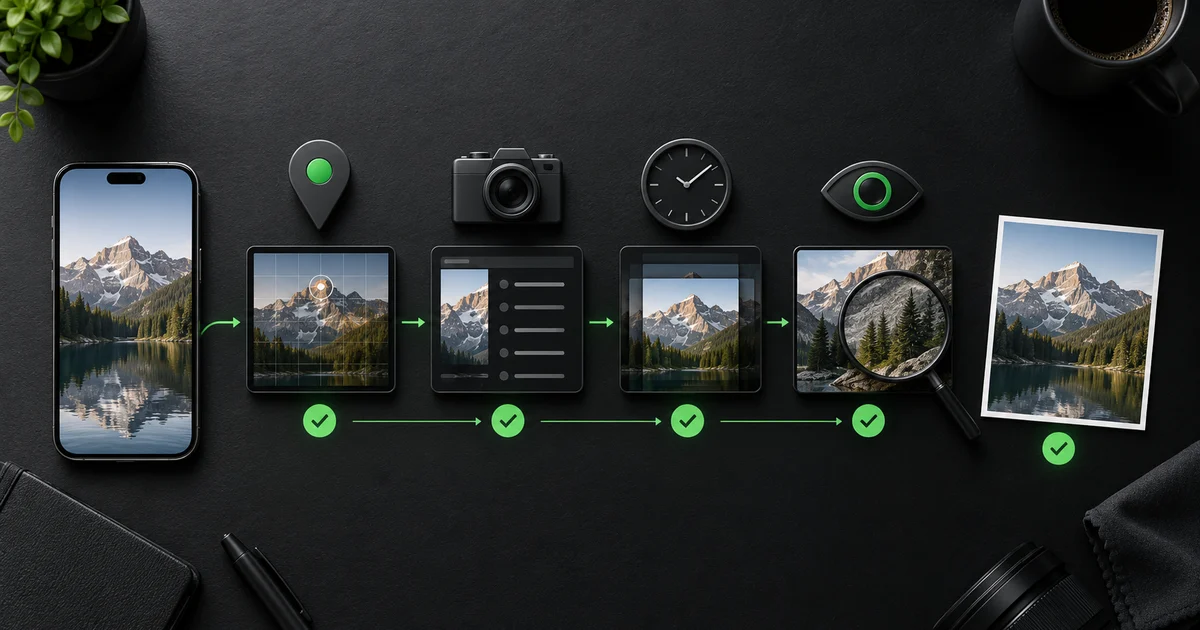
1. Decide who receives the actual file
Your risk changes with the recipient and delivery path. A compressed social post, an email attachment, an AirDrop transfer, and an iCloud original are not the same artifact. Ask whether the recipient can download the original or only view a derivative.
Treat files sent to strangers, public communities, marketplace buyers, dating matches, clients, and journalists as higher risk. In those cases, minimize first and assume the recipient can inspect what they receive.
2. Inspect five categories
Apple warns that people receiving photos with location metadata may be able to learn where they were taken. Apple also exposes a Photos information view where you can review device, date, camera, and location details.
- Location: GPS latitude, longitude, altitude, and location names.
- Time: original capture date, digitized date, and modification timestamps.
- Device: make, model, lens, owner fields, and serial identifiers.
- Software: editing application, export tool, and workflow markers.
- Provenance: XMP, C2PA/Content Credentials markers, captions, and edit history.
3. Check the pixels, not only the metadata
Metadata tools cannot remove what is visibly photographed. Zoom in and look for addresses, shipping labels, ID cards, school or employer logos, faces, reflections, vehicle plates, computer screens, QR codes, and distinctive landmarks.
Crop, blur, or choose another photo when visible evidence is the risk. Metadata cleanup and visual redaction solve different problems.
4. Export a new copy and verify it
Never overwrite the only original. Export a separate privacy-safe copy, then reopen that output and run the same inspection again. Verification matters because a successful-looking export can still preserve an unsupported field or fail in a way the interface did not surface.
NoTrace follows this model: originals remain untouched, and requested cleanup outputs must be reopened and checked before the app enables sharing.
5. Use the least revealing sharing option
- Turn off Location in the iPhone share options when location is unnecessary.
- Do not enable All Photos Data for a privacy-minimized copy.
- Share the verified output, not the original still sitting beside it in Photos.
- After sending, download or save the recipient-side copy when possible and inspect that too.
See what your photo reveals.
The browser checker reads supported metadata locally. Your selected photo is not uploaded.
Frequently asked questions
What is the most dangerous photo metadata?
Precise GPS is usually the highest immediate privacy risk because it can identify a home, workplace, hotel, or current location. Device identifiers and exact timestamps can also become sensitive when combined with other information.
Should I delete metadata from my photo library?
Usually no. Metadata is useful for search, organization, photography, and archives. Keep the original privately and share a cleaned copy.
Sources and methodology
We prefer primary documentation and distinguish documented behavior from repeatable observation. Product limitations are stated directly.
- Apple Personal Safety: Manage location metadata in PhotosApple's safety guidance for reviewing, removing, and preventing photo location metadata.
- Apple Support: Share photos and videos on iPhonePrimary documentation for the metadata and options involved in sharing.
- Apple Support: See photo and video information on iPhonePrimary documentation for the information visible in Photos.